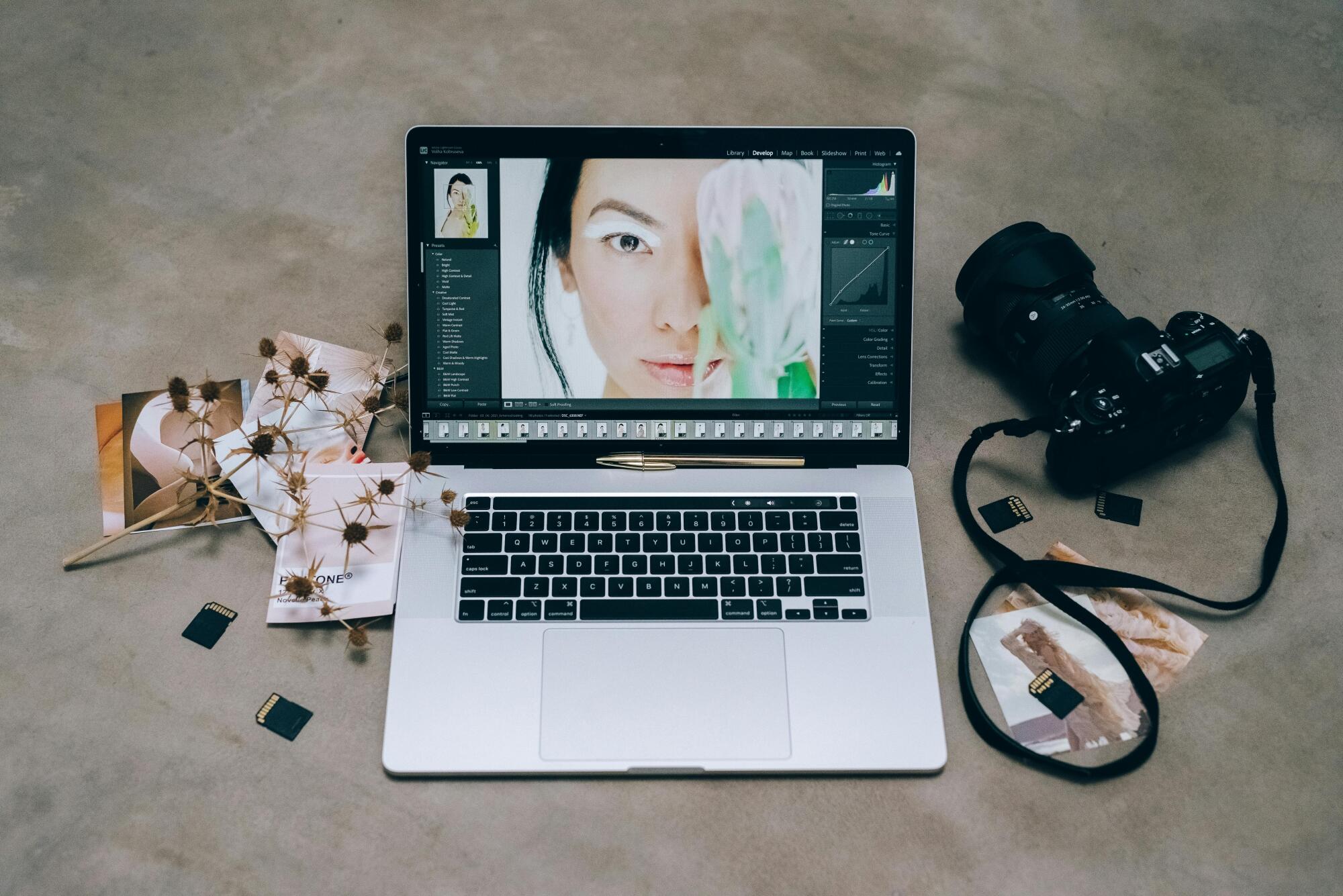
Photo filters are a quick and easy way to improve the look of your images. Whether you’re editing a selfie, a travel picture, or a food shot, filters can help you enhance colors, adjust lighting, and add style with just a few taps. You don’t need to be a professional or understand advanced editing tools.
Filters make editing simple, especially for beginners. This guide will show you step-by-step how to apply filters to your photos using apps or websites that are easy to use. If you’re just getting started with photo editing, this is the perfect place to begin.
Choose a Good Photo to Edit
Start by selecting a photo you want to improve. Pick one that is clear and well-lit. It’s easier to get good results when your photo already looks decent.
Blurry or very dark photos may not improve much, even with a filter. Try to use a photo where the subject is easy to see and the background is not too busy. A clean and sharp image works best.
Find a Photo Editing App or Tool
To apply a filter, you need a photo editing app or an online tool. There are many apps that are simple enough for beginners. You can download them from your app store if you’re using a smartphone, or you can use a website on your computer. Some popular apps and websites offer both free and paid options, and most of them are very easy to use. Once you’ve chosen your editing tool, a feature-rich photo editor makes it easy to customize your photos with filters, effects, and intelligent editing features.
If you want to test things out without spending money, many platforms provide access to free photo filters. These are often available with just a few clicks and don’t require any experience to use. You can find apps that work on Android, iPhone, and even directly in your web browser.
Upload Your Photo
Once you’ve chosen an app or website, the next step is to open your photo. Usually, there will be a button that says something like “Upload Photo” or “Open Image.” Tap or click on it, then select the image you want to edit from your device.
The app may ask for permission to access your photos if you’re using a smartphone. After selecting your photo, it will appear on the screen, ready to be edited.
Explore the Filter Options
After the photo loads, look for the filter section. This is usually labeled as “Filters,” “Effects,” or “Looks.” When you tap on it, you’ll see different filter styles displayed. Each filter gives your photo a different feel.
Some filters make your photo brighter, some add a soft tone, and others change the colors to make them more dramatic.
You don’t need to know what each filter does in detail. Just try them one by one and see which one you like best.
Most apps will show a preview so you can see how your photo will look with each filter applied. Take your time and experiment until you find a filter that matches the style you want.
Adjust the Filter Strength
After you apply a filter, you’ll often see an option to change how strong the filter appears. This might be a slider or a percentage bar. You can make the filter more noticeable or more subtle depending on how far you move the slider.
If the filter looks too heavy or unnatural, try lowering the strength until the image looks just right. This is a great way to keep your photo looking natural while still enjoying the benefits of the filter. Many great edits come from using filters in a light and balanced way.
Make Basic Edits
You can stop after applying a filter, but many apps also let you make extra adjustments. These are usually simple tools like brightness, contrast, saturation, or sharpness. If your photo looks a bit too dark, you can increase the brightness.
If the colors do not stand out, you can raise the saturation. If the image looks too sharp or too soft, you can adjust that as well.
These changes are optional. You don’t have to use them, but they can help your photo look even better. The key is to make small edits and not overdo it. If your photo starts to look fake or too edited, take a step back and reduce the effect.
Save the Edited Photo
Once you are happy with your filter and any extra changes, it’s time to save your photo. Look for a button that says “Save,” “Download,” or “Export.” Tap or click it, and choose where to store the photo on your device.
Some apps will ask if you want to replace the original photo or save a new copy. It’s usually a good idea to save a new version so you can keep the original just in case.
Try to save your photo in high quality. This will keep the image sharp and clear, especially if you want to post it online or print it later.
Share Your Photo
If your goal is to post the edited photo on social media, many apps allow you to share it directly from the editing screen. You can upload your new photo to Instagram, Facebook, or any other platform with just a few taps.
Before you post, look at the photo one more time to make sure it looks good on your screen. Sometimes filters look different on a small phone screen compared to a larger one. If everything looks good, go ahead and share it with your followers.
Apply Photo Filters to Your Photo Now
Using photo filters is one of the easiest ways to make your pictures look better. You don’t need any special skills or tools. Just follow a few simple steps and try different looks until you find one you like.
With practice, you will get better at knowing which filters work best for your photos. Start editing today and make your images stand out with just a few quick changes.
Did you find this article helpful? Check out the rest of our blog for more!